
Church Check-In systems are typically used for Children’s Ministry, although they can be used in any ministry to track attendance. Within a Children’s Ministry, the check-in system provides added security to ensure that children are released only to authorized adults at pick-up time. An ideal child check-in system integrated into your church management software will include key details about the child, such as allergies, special needs, and family information.
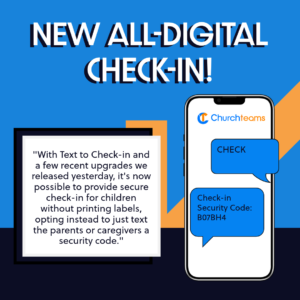
Most check-in systems rely on printed security tags that feature a unique code. This code is used to match the child to the correct adult. But now you can save time and money on labels with digital, text-based check-in from Churchteams.
How does text-based check-in work to keep children safe without printed security tags?
Parents check in their kids simply by texting the word CHECK to your church’s Text-to-Church phone number. The Tex-to-Church number is often the church office phone number. They get back a texted Security Code and show it to the classroom volunteer or greeter. This text replaces a printed security code on a label and serves as confirmation of check-in.
Before parents return for pickup, children’s ministry staff navigate to a detailed attendance report on the check-in screen. The report can also be printed, placed in each classroom, and used as a roll call during emergencies. The report lists each child’s name and Security Code for that day. The checkout staff simply match the number texted to parents with the report when parents pick up their child. And there you have it — secure check-in without printed tags.
Is a paperless option right for your Children’s Ministry?
The key to this question is the value of the information on the nametags. If volunteers rely on tags to recall names, allergies, or other notes, you’ll want to keep using the labels. Nursery and preschool classrooms, in particular, where a parent’s cell phone is printed on the name tag, appreciate having the information right at hand, on the child.
If the details on the name tags are minimal or not useful, this could be a great option for you. Paperless check-in is a great option for elementary or older child groups, as well as youth events.
Are you ready to use check-in without labels?
To set up this version of check-in, navigate to Check-in > Views / Settings. At the bottom of the page is the Automatic Startup Schedule. Set a weekly time frame for Check-in to be available, without having to log in or start up Check-in each time.
In the automatic start-up settings, there is a new No Labels / Text Only option. Simply check it to indicate that no label printer is needed for this automated session. You will still need to check the Enabled box for the auto-startup to work.
 Use the +Add Schedule button to create new Auto Startup Schedules.

As the name implies, check-in will be automatically available on the scheduled day and at the scheduled times.
What about a report for securely checking children out?
When you are ready to begin the check-out process, (1) go to a check-in computer, laptop, or tablet; (2) if a check-in session is not already open, start one using the same check-in view as the one on the automatic startup schedule; (3) click the small chart icon on the lower right of the screen; (4) enter the check-in password, and (5) open the Detail Attendance Report. This report lists all children checked in by class, along with their security code for the day. It can also be printed and distributed to each classroom for check-out and security code verification.
How do we handle new families when we are using Check-In without secure name tags?
One option is to set up a separate check-in for guests and print name tags that parents match to their child. This could be helpful for volunteers learning a new child’s name.
Another option is to have them text the keyword CHECK, click the link they get back, and follow the instructions to enter their information and check in. QR codes can now be generated to open the native SMS app (rather than a browser) and automatically enter the phone number and keyword. This functionality is likely a new way for people to use a QR code and might need to be explained.
If this doesn’t fit your Sunday morning check-in needs, it might be a good solution for another kids’ ministry environment where labels are less important.
Churchteams handles a variety of Check-in needs. If you are looking for other options, check out our comprehensive knowledge base article on Churchteams Check-In.

