
With Pre-Check By Text, gaining admission to your ticketed community or church event is now easier than ever! Guests simply text “check” to your Text-to-Church number, click the link they receive, confirm, and then show their confirmation text at the entrance.
While most church events are open to all, some require tickets for admission, either to confirm payment or to manage capacity. Our registration and check-in features have worked together for years to sign people up for events, then check them in just like they would for a worship service.
The missing component was a way for people to register, check in by text, and receive a confirmation to use as an admission ticket. Many dedicated event check-in systems, like Eventbrite, do this as well. Using Churchteams eliminates the need for another siloed system, ensuring all data remains in the database you are already using.
How does Pre-Check by Text work for an event attendee?
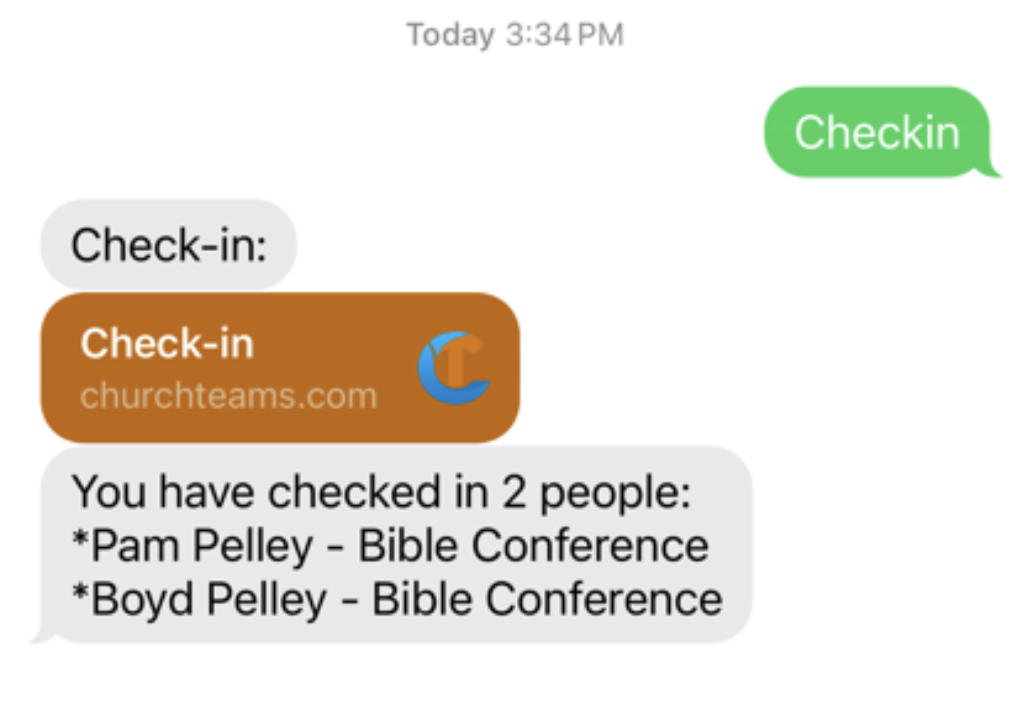
- Guests text “Check” or “Checkin.”
- They click on the Churchteams link they receive back. (Orange in this image.)
- Check in on the linked page.
- They show the usher the confirmation text.
How do I set up the event in Churchteams?
1. Start by creating the event itself with all the required registration options, including payments and capacity for the event.
2. Create or edit the Check-in view you will be using (on the Check-In Settings page). This should be a unique check-in view for events.
3. Check option E7. “Large event pre-check confirmation text. Includes classes/groups for everyone checked in and can be used as verification tickets at the door. Only applies to Text-to-Check-in and App Check-in. (Not a replacement for security code labels)
You can set up an automatic station ahead of the event so that it’s ready to go before the doors open. Those who don’t precheck by text will still be able to check in through a normal check-in station.
Ready to set up your first Pre-Check By Text event?
Our Support Team is ready to help you with the details. Contact us today.

